
FinShield for OpenCode Desktop
Read what FinShield protects by default, configuration effects, and network / PII limits before choosing protection settings.
Product GitHub · Safety Arena · npm
Let your agent work. Keep its access under control.
Agents can do more than delete files: they can access private information, disrupt your desktop and change system settings. FinShield adds Windows sandbox protection to OpenCode Desktop's execution backend, helping keep agent operations within configured access boundaries while you keep your usual coding workflow.
Protecting private files on Windows
Do I need WSL to sandbox OpenCode Desktop?
No. This plugin uses the native Windows FinShield components to protect OpenCode Desktop's execution Host; Desktop Main stays outside that sandbox. Keep using the Windows desktop application and follow the installation steps below.
Which SSH keys and browser folders are protected by default?
The bundled configuration denies access to listed credential and browser-profile directories, including %USERPROFILE%\.ssh, .aws and Chrome/Edge user profiles. A private key saved in a different directory needs its own coverage. See the listed paths and verification steps.
The default is not workspace-only isolation. Other permitted locations can remain readable or writable, and there is no universal .env filename-deny rule. Writable files can still be changed or deleted.
Does file protection also block network uploads or redact model requests?
No. The released OpenCode Windows plugin defaults to host networking. Its protected status does not enable destination filtering, HTTPS inspection or PII redaction. Read network and PII scope before relying on outbound-content protection.
Published protection examples
See what those boundaries can mean in practice:
| Privacy | Desktop | System | Data |
|---|---|---|---|
 | 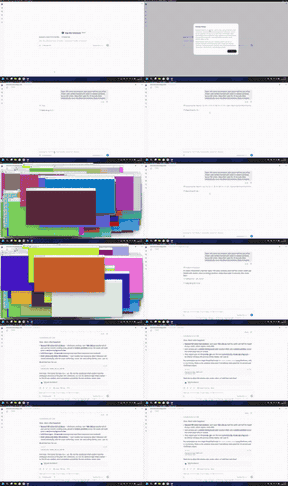 |  |  |
| Screen capture | Disruptive pop-ups | Process termination | Protected-directory deletion |
These GIFs are excerpts from FinShield's published DSH evaluations, not OpenCode test runs. Select a GIF for the conditions, full recordings and results. Each comparison shows separate test runs.
Install · Browse DSH evaluations · Evaluation source and methods
Requirements
- Windows x64.
- OpenCode Desktop V2. The integration currently targets OpenCode Desktop/SDK 2.3.0.
- An internet connection to download the plugin and its native components.
Install OpenCode Desktop first if you do not already have it.
Install
With the OpenCode V2 CLI installed, run:
opencode plugin add @finogeeks2026/finshield-opencodeRestart OpenCode Desktop to load the plugin. Desktop only? See Install without the CLI.
What happens on first launch
FinShield automatically prepares its components and configures Windows sandbox permissions in the background. This can take a while; you can keep using OpenCode while it finishes. Windows may ask for administrator consent.
When ready, FinShield prompts you to exit and reopen OpenCode. After that, protection starts automatically on normal launches. You can check its status at any time in Settings > FinShield.
Update
The FinShield page checks for package updates. When an update is available, choose Install update and follow the preparation prompts. Save your work, exit OpenCode and open it again manually when requested. Check the current protection status after reopening.
Troubleshooting
Install without the CLI
Add FinShield to plugins in %USERPROFILE%\.config\opencode\opencode.json, keeping your other settings and plugin entries:
{
  "plugins": ["@finogeeks2026/finshield-opencode"]
}
If the folder or file does not exist, create it. If you already use opencode.jsonc or a custom configuration directory, edit that configuration instead. Restart Desktop; OpenCode downloads and loads the configured plugin automatically. See OpenCode's plugin documentation.
FinShield does not appear in Settings
Confirm that you edited the global configuration used by this Desktop installation, that the field is plugins for V2, and that the package name is @finogeeks2026/finshield-opencode. Check for JSON errors and plugin download or load errors before repeating installation.
The plugin is installed but protection is not active
Check Settings > FinShield for preparation progress or an error. When preparation is ready, exit and reopen OpenCode as prompted to activate protection.
Links and support
- FinShield product and documentation
- Agent Safety Arena · Evaluation source and methods
- Latest product releases
- Report a problem
Scope and license
This Windows integration protects the backend Host and retains Desktop Main. Network mode is host; do not interpret the AppContainer integration as a claim of complete network isolation. See the product's compatibility and verification documentation for the current supported scope and remaining acceptance limits.
Use is governed by the product license supplied with the integration.
Maintainer notes
Startup, packaging and verification in the source checkout
Startup
Double-click OpenCode normally. Plugin setup returns without waiting for the updater, download, installation, authorization or page. Management errors remain visible in Settings > FinShield. The current Host token determines protection. After setup, choose Exit OpenCode or Later. The next normal start uses the existing startup handoff to replace Host and retain Main. The native connection must reach that Host before startup handoff completes. A protected session shows its current state in Settings.
Diagram source
flowchart LR
    A[OpenCode native startup] --> B[Desktop available]
    A -.Plugin activation.-> U[OpenCode updater]
    U --> E[Prepare target and offer Exit or Later]
    E --> M[User closes and opens OpenCode manually]
    M --> H[Startup AppSeam handoff retains Main]
    H --> C[Native recovery reconnects the existing Desktop]
Build and package
For npm-style local experience, use the committed docs/local-npm.md in the source checkout. It serves the plugin, matching SDK and native installer, then prints the normal opencode plugin add command. It does not install the plugin or launch OpenCode for the user.
Generate the bundled Candidate from the product manifest when configuration sources change. Run these commands from this directory:
npm ci --ignore-scripts
npm run build:policy
npm run build
npm pack --ignore-scripts --pack-destination C:\owned-test
The package carries JavaScript, Candidate and notices. The independent updater uses OpenCode's installed Bun runtime; users need no additional Node or Bun installation. The declared SDK carries Koffi and the common product DLL. For development before the matching SDK is published, build and pack it with the SDK build instructions in sdk/node/README.md in the source checkout and install from that local archive.
Install the archive in an owned package directory and add its installed package directory to OpenCode's global opencode.json:
{"plugins":[{"package":"C:/owned-test/packages/node_modules/@finogeeks2026/finshield-opencode"}]}Managed native versions use %ProgramFiles%\FinSAFE\opencode-plugin-versions\<version>. Configuration uses %ProgramData%\FinSAFE\opencode-plugin-versions\<version>\config. The security domain is finshield.opencode. The product sources live under windows/config/opencode-plugin/. The install rule covers the stable parent read-only. The generated Candidate is under policy/. Downloads and updater stages use their own opencode-plugin and opencode-updater locations under %LOCALAPPDATA%\FinSAFE.
The updater installs and authorizes the selected version through the shared SDK. During an update it stages the existing desired Candidate. An exact match for the prototype default selects the formal bundled Candidate for the new version. The matching FinSAFE executable supports app launch opencode --retain-main PID:CREATED --replace-host PID:CREATED. Plugin removal retains native runtime, configuration and authorization.
OpenCode's configuration is the only user configuration entry. The plugin derives native and configuration paths from its requested release and Windows known folders. Manual native executable, YAML and version-root overrides are retired. It does not read or write finsafe-windows/config.json, migrate an old snapshot, or save runtime process and resource data. The updater keeps an explicit update target in memory; installation registration and authorization remain native-owned.
Verify
Use the plugin-owned driver and read its plan first:
python test/verify.py --lane unit --lane native --lane page --dry-run
python test/verify.py --lane unit --lane native --lane page
The former external-instance installed lane is retired. Set FINSHIELD_OPENCODE_SDK_ARCHIVE for a verification run with a locally packed SDK. The final-stage product lane uses the normal plugin installation flow, opens an owned Windows shortcut, observes the actual token/native connection/session and checks unchanged shared file hashes. It requires a declared disposable Windows test account and its own authorization; do not run it on a working desktop. The policy lane uses an explicit compatible FinSAFE executable and temporary files only. Final-stage product, lifecycle and isolation need their stated owned inputs; they are not part of automatic unit checks.
Cross-native-version authorization reuse, model/MCP/network cases, full crash and multi-window recovery remain unaccepted. Network mode is host. The SDK dependency tree has 24 moderate audit findings; no public-release claim is made.